Moving a Diagram in the Document Window
You can move a diagram in the document window using the mouse. You can make precise settings for this in the Innovator options.
Use the Innovator options to set whether you want to be able to move a diagram by simply pressing the mouse button or whether you should press the [Ctrl] key as well.You can find the settings for these under Application Menu>Options>Mouse.
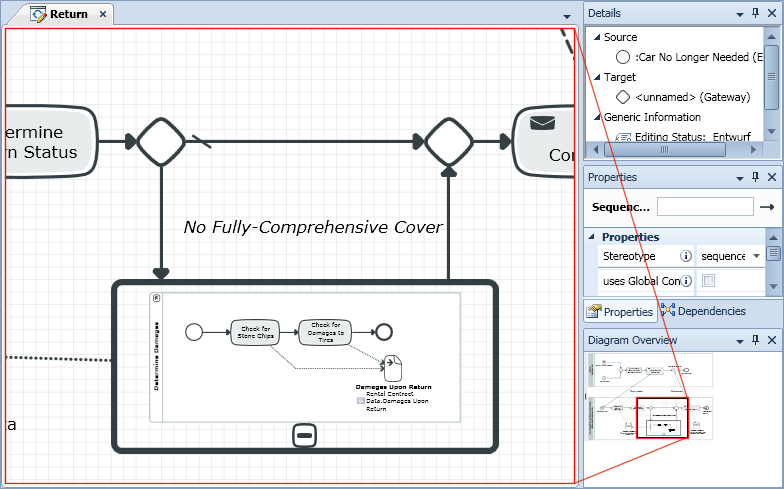
The diagram overview shows the respective diagram section that can be seen in the document window in a black box. You can move these black frames in the diagram overview using the mouse.
- Click on a free point in the diagram and keep the mouse button pressed.Depending on what setting you made, press the [Ctrl] key as well.
If the mouse is not on an element which can be selected, the mouse pointer becomes an arrow cross when the left mouse button is pressed. Moving the mouse with the left mouse button pressed moves the diagram section.
- Move the diagram to where you want it in the document window.